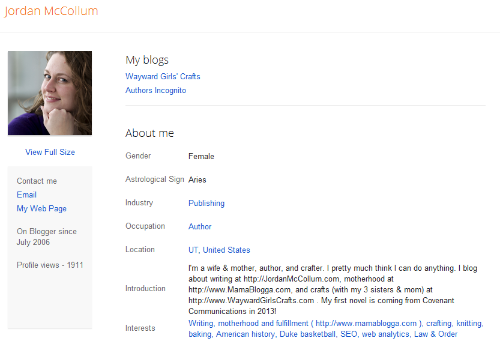
Four years of fulfillment: blogoversary reflections

It snuck up on me again: today is my blogoversary. Blogiversary? Whatever.

Four years. I’ve been blogging for four years. I keep thinking that must be wrong, but then I remember I started when Hayden was a few months old, and now he’s four, so it must be true.

If I’d been paying attention (and not distracted by something so non-time-consuming as a new baby, a toddler, and a preschooler ;) ), I could have had a wonderful party set up here for you today. Instead, you’ll have to make do with my thoughts. But, hey, that’s what blogging’s all about anyway, right?

I started this blog for the same reason lots of people start their blogs: I wanted to keep my far-off family updated on my kids’ (well, kid’s at the time) life. And I was bored.

Actually, the boredom part played a big role in starting the blog. While I knew being a mother was where I belonged, I still felt overwhelmed—and bored. I vacillated between wondering How can I handle all this? to Is this it?

And I kept waiting for the sense that I was in the right place, doing the right thing—that all this effort was worth it. Fulfillment. But no magic wand bestowed fulfillment on me. I didn’t wake up one morning with the peaceful assurance that one day—perhaps even that very day—my children would rise up and call me blessed.

I hoped I wasn’t the only one.

Over the last four years, a lot has changed. Our family has grown—and slowly, but not-so-steadily, so has my contentment with motherhood, my current season in life. I’ve come to learn that “finding” fulfillment is misleading. We choose happiness, and then it comes to us.

It’s something we must recapture every day, sometimes. It’s easy to lose. To be honest, a big part of the reason why this blog has been so quiet these last few months is that I lost it, big time. (And some days, it felt like I was seriously “losing it”!)

Things have been wonderful since Rachel was born, even being on my own for the last four days. It’s not because the nature of the thing—motherhood—has changed. My capacity for doing, on the other hand, has. The newborn days are still tough (I swear Hayden and Rebecca could be put down once in a while…), but I know they’ll come to an end, and my tiny little girl will grow into a toddler who’s stringing together four and five word sentences (before her second birthday!), and then a preschooler making amazing connections in logic and reasoning, and on.

I’m trying to treasure them as they are now and imprint them on my heart at each stage, because soon the amazing new things they’re doing and saying will fade in novelty, or out of their vocabularies forever. (Rebecca just stopped calling her brother “Hee-ah” last week. “Hay-DEN,” she corrects us.)

How do you treasure today? How has your foundation for fulfillment evolved over time?

Beginners’ Guide to WordPress: Posts & Pages

This entry is part 1 of 0 in the series Beginning with WordPress

We’re continuing our series on getting started with blogging, bouncing back to WordPress this week to look at the basics of posting and creating pages.

Previously, we looked at how to create your first post—but there’s a lot of information and options on the post page that we didn’t cover. To get to the edit post or add new post page, you can use your dashboard or the gray bar at the top of your screen when you’re logged in to WordPress. The Posts menu is on the left-hand side:

The Edit option takes you to a list of your posts (click to enlarge):

Here, the posts you’ve saved as drafts, published or scheduled on your blog are listed in chronological order. You can click on a post title to edit it individually. When you hover your cursor over the title of the post, you get additional options below the title: Edit (which does the same thing as clicking on the post title), Quick Edit (which lets you change things like tags, categories, title, and date right in the Edit Posts page), Trash (which moves the post to your trash, where you can salvage it later if you want), or View (to see what it would or does look like on your blog).

On the same line as each post title, you can also click on the author name to only show posts by a certain author, or the category name to narrow your view to posts in that category. Each post’s viewing stats and comments are also accessible from here.

You can also edit multiple posts from this screen. Check the boxes next to the posts you want to edit and use the drop down menu labeled Bulk Actions to edit or delete multiple posts. This is waht it looks like when you choose to edit multiple posts (again, click to enlarge):

This way, you can change multiple posts into different categories, add tags to multiple posts and change whether they can have comments or are even published—many of the same things you can do for a single post in Quick Edit.

The next option on the Posts menu is Add New. (You can also add a new post by clicking on the New Post button on the top gray menu bar.) We looked at how to create and publish a post last time; this time we’ll look at the rest of the post options on this page.

Below the post text box, there are three boxes for more information: Excerpt, Send Trackbacks, and Discussion. For the most part, these are pretty self-explanatory—especially since they include an explanation ;) .

To the right of the post box, there are three more boxes with options: Publish, Post Tags and Categories:

The Publish box has the Save Draft, Preview and Publish buttons. (Once you’ve published a post, these buttons are replaced with a Preview Changes button up top and an Update button on the bottom).

This box also has more options: You can click Edit by Draft to change the status from Draft to Pending Review (for drafts you’ve completed but aren’t ready to schedule). Once you’ve published, Published is added to this option list. Clicking Edit next to Visibility allows you to set a post as public, private or password-protected (by a password you set). Also under this option, you can set a post to always remain on the front page of your blog, such as a short post describing your blog or perhaps inviting visitors to introduce themselves.

The Post Tags box is used to add tags to a post. These are usually listed on your post and can let your users see all your posts on a particular, narrow topic. Tags are generally more specific than categories (the next box down): if you blog about knitting, for example, you might have a category for all your Projects, but tags for Finished Objects, Sweaters, Cardigans, etc. When adding tags, be sure to hit the Add button (or the Enter/Return key) AND save the post/draft to save them. (You can remove a tag by clicking the x next to it.)

The Categories box lets you categorize your posts by the broader topics of your blog. You can also add a new category from right inside this box—just click +Add New Category and you’ll get a text box to name your new category.

Note that the Add New Post page can be customized: you can drag and drop all six of these boxes to rearrange the page however you’d like.

Also on the Posts menu are pages to manage all your tags and categories. The Manage Tags page (click to enlarge):

From here, you can add new tags, as well as edit the descriptions of existing tags. Once you’ve published posts with tags, your most used tags appear under Popular Tags. Also, an alphabetical list of the tags, their descriptions and the number of posts using those tags will appear to the right. As with posts, you can use the check boxes to select multiple tags to delete, or you can edit individual tags (such as to add a description) by clicking on the tag’s name. Clicking on the number of posts using them gives you a list of posts (on the Edit Posts page) using that tag.

The Categories page is very similar (click to enlarge):

The most notable difference here is that “categories, unlike tags, can have a hierarchy.” Tags are all one level, but Categories can be “parents” or “children”—you can have one category broken up into multiple subcategories. With our knitting blog example, maybe under the Projects category, you have three subcategories: Cardigans, Pullovers and Socks.

(Why use subcategories instead of tags? If a topic is really central to the purpose of your blog and something you’ll be posting about frequently, but falls under the purview of a broader subject of your blog, a subcategory might be the perfect fit—but only you can decide what should be a tag and what should be a category.)

In addition to Posts, you can also have Pages on your blog. Posts are the temporal stuff—the day-to-day news updates, the regular content on your blog. Pages are for important information not tied to time, like your About or Contact pages. The Pages menu is further down on the left-hand side of WordPress:

The two options, Edit and Add New, lead to pages almost identical to the Edit and Add New Posts pages.

The biggest difference in creating pages is that, like categories, you can have subordinate pages—for example, your About page might have child pages on your Biography, your Portfolio, etc. This is set in the Attributes box below the Publish box on the Edit or Add New Page page:

You can also use a custom template (if you dare) for certain pages—a different layout for a particular page, for example. The page Order determines what order your pages are displayed on your menu bar on your blog. If it’s not set, the pages are listed by date published.

Whew! Everything there is to know about the Posts and Pages menus on WordPress!

Beginning with Blogger: Posts and Pages

This entry is part 2 of 1 in the series Beginning with Blogger

While this post is intended for beginners, there may be something for all of us here. Did you know that Blogger now has “Pages”? This is a very cool, very important step for Blogger as a “full-featured” blogging platform. You don’t have to cobble together a menu bar or touch HTML or flood your feed as you create “About Me” and “Contact” pages. (Check out the fourth picture and description for more details.)

All right, so we’ve created a blog with Blogger and even made our first post. Now we’re ready to learn a little more about posting. When you log in to Blogger and go to your blog, click on the Posting tab. You’ll see you have four sub-options.

The first, rather obviously, creates a New Post. We already went over how to create a post, so today we’ll look at the Post Options below the post text box. Click on the triangle to open the Post Options:

Here, you can switch off comments on a case-by-case basis. (In a few weeks, we’ll find how to turn off all comments automatically.) Unless you want to code your posts in HTML, keep the Enter HTML Line Breaks set to Press “Enter for Line Breaks. And if you’re not entering any HTML (for example, the code for others to copy and paste to use a badge), don’t worry about the Compose Settings.

The Post Date and Time has two options: Automatic, meaning it sets the date and time of the post to whenever you hit Publish, or Scheduled, meaning you get to pick the date and time displayed on the post. You can pick a time in the past to post-date a post, or you can pick a date or time to schedule a post to go live in the future. (When you click the button by Scheduled, a box pops up for you to enter the date and time you want.)

Finally, note here the Labels. You can use these to assign your posts to categories, and organize them for you and your visitors. You can have many, many Labels on a post, using them as specific “tags” so you can keep track of all the topics you mention, or you can stick to 5-10 or so Labels total, and use them as broad categories to organize your blog into general topics.

The next option under the Posting Tab is the Edit Posts option. This lists all your posts and drafts—and this is where to go to finish working on a draft post.

You can select some or all of your posts to add labels (with the drop down menu at left). You can also filter the posts you see by when they are or will be published: drafts aren’t scheduled to be published, Scheduled posts have been assigned a date and time and “published,” but aren’t visible on the blog yet, and Imported posts came from another blog (we’ll look at how to do that another week).

On the line with the post, you can see the Title and the date or time (if recent enough) it was either published or last edited. To the left of the title is a little triangle—you can click on the triangle to see the text of the post without leaving this page. If a post has been published, you have the option to View just left of that. And left of that, you click Edit to finish or fix a post.

At the top, you can search in your posts or create a new post. At the bottom, you can publish or delete any of the posts you’ve selected with the check boxes on their lines.

The next option under the Posting Tab is the Edit Pages option. Pages are not like posts. Posts are little bits of time. They have dates and times attached to them. They’re your weekly/daily/whateverly updates. Pages are for the information that’s almost always going to stay the same on your blog: who you are, how to contact you, etc. My pages are displayed in a line underneath my header. (Home, Blog Mentoring, About, Contact, etc.)

You can have the same layout easily with Blogger. (This used to be a lot of work!) Click on Edit Pages to view the page menu. Here, you have the option to create a new page. Below that, any existing pages are displayed. Click on New Page to create a new page.

The Create a New Page page looks just like the create a new post page. Enter your title and text here, and click Publish Page to make it live.

If this is your first Page, Blogger will ask you where you’d like the list of your pages to be displayed on your blog. I highly recommend the Blog tabs option.

When you visit your blog, you can see the Pages listed below the header:

The last option under the Posting tab is Comment Moderation. All this has is a link to the Settings page for Comment Moderation:

And we’ll talk about that with other settings!

There you go—now you can save drafts, create new posts and create pages for your Blogger blog.

Anything need to be clearer?

Beginners’ Guide to WordPress: Sign up

Like I said last week, we are going back to basics. I realize that most of you don’t need this help, but you might have a friend or relative who could use this. Last week, we covered how to sign up for Blogger, so this week we’ll look at how to sign up for WordPress.

Note that there are two versions of WordPress: wordpress.com and wordpress.org. Wordpress.com is what you want to use if you just want a free blog. Wordpress.org is if you want more control, but are ready to take care of the maintenance and technical stuff, as well as pay for hosting. Today we’re looking at wordpress.com

Go to WordPress.com. To sign up for a blog, click the big orange button on the right-hand side of the screen. You know, the one that says “Sign up now.” (You already knew that, huh?)

On the next page, you provide some very impersonal information: a username and password for your account, and an email address where WordPress can reach you.

Be sure here that you check the box to indicate that you’ve read the terms of service (which you should always read, of course), as well as tick the circle by Gimme a blog! (Like username.wordpress.com). You’ll get to select the exact address at wordpress.com in the next step. This option is selected by default. The other choice is if you just want a username for commenting on other WordPress.com blogs, etc.

As promised, we now get to set the blog address. You select an address for your blog as well as its title (what will appear in big letters at the top of every page). Note that there are no @ signs in the address of your blog—@ signs are only used in email addresses! Your blog address will be whatever you choose (if it’s available), followed by .wordpress.com (Unlike with Blogger, the address can’t be changed—choose wisely!).

Also here, you indicate what language you’ll be writing in and whether or not you want Google and other websites, including WordPress’s public listings, to be able to access your blog. If you’d like to keep your blog more private (and also make it harder to find), uncheck this box before you click Signup.

WordPress gives you a message that your confirmation email has been sent. In the mean time, if you’ve opted to be included in the public listings of WordPress, you can fill out your profile with your name and a little about yourself.

Here’s our confirmation email:

As it says, click on the link or cut-and-paste it into your browser’s address bar.

And your account is active! The confirmation message gives you a link to visit your blog, where they’ve already put up a useful Hello World! post for you. If you’re signed in, there’s a dark gray bar across the top of the screen—your dashboard. Click on New Post to start writing your own blog posts. (You can click on the picture below to enlarge it to see the New Post button.)

On the New Post page, you can write the individual posts for your blog. Enter a title in the title box—the title of the post appears at the top of the post in big letters. (This post’’ title, for example, is “Beginners’ Guide to WordPress: Sign Up.”) (Again, you can click on this image to enlarge it for a better view.)

In the larger box below, type the words you’d like to see in the content or body of your post. (I’m pretty sure we’ll also be talking about what all those buttons do soon, too.)

To save the draft to finish later, or to make sure you don’t lose your work should your computer or browser crash, click the Save Draft button in the Publish box on the right side of the screen. To publish it to your public blog, click the blue Publish button. Once you publish, you’ll see this at the top of the screen:

You can click on the View post link to see your public post:

Congratulations! You just started a blog on WordPress!

What blogging topics would you like covered for WordPress?

Beginners’ Guide to Blogger: Sign Up

This entry is part 1 of 1 in the series Beginning with Blogger

We’re going back to the basics for this next blogging series: I’m going to alternate weeks on Blogger and WordPress.com, and go back all the way to the beginning. I imagine you probably already have a blog, and you’ve probably been through all these steps, but you may know someone who’s interested in getting started, but afraid to try. Fear not! It’s easy! And if you want someone to show you what to do, look no further, because here’s the Beginniners’ Guide to Blogger, part one: how to sign up and set up your blog the first time.

Go to http://www.blogger.com. Here’s what the screen looks like:

If you already have a Google account—such as for Gmail, Google Groups or Orkut—you can use that to sign in at the top. Otherwise, click the big orange button to create an account.

Account creation is easy. You do have to supply some personal details—but nothing more intimate than your email address. You also set a display name here, the name that appears at the bottom of your blog posts. If you don’t want to use your real name, be sure to set that to your pseudonym of choice.

If you already have a Google account, when you sign in, you’ll see this. Click the blue button to create your blog:

Whether you just created a new account or are using an existing account, the next step is the same (You can click to enlarge the picture below). You select a name for your blog (what will appear in big letters at the top of every page) as well as its address. Note that there are no @ signs in the name of your blog—@ signs are only used in email addresses! Your blog address will be whatever you choose (if it’s available), followed by .blogspot.com —in the example here, it’s http://thisisafakeoblogo.blogspot.com. Use the “check availability” link to make sure that address isn’t already taken.

Type in the spam-catcher letters and click the orange Continue button.

Next, you get to choose the template or layout and colors of your blog. There are several choices here, so scroll down to see them all and pick the one you like best. (Note: in an upcoming post, we’ll talk about how to get custom designs for your Blogger blog.)

Voila! Your blog has been created! You can hit the orange Continue button here to start posting, or look at the Advanced Setup Options.

The advanced options allow you to get your own domain for your Blogger blog—i.e., ThisIsAFakeoBlogo.com instead of thisisafakeoblogo.blogspot.com. (Purchasing a domain will cost money. Here’s some of my advice on buying your own domain.) The other advanced option is to import a blog you already have into your new one.

If you went with the orange Continue button, you’ll go right to the Write New Post page. Enter a title in the title box—the title of the post appears at the top of the post in big letters. (This post’s title, for example, is “Beginners’ Guide to Blogger: Sign Up.”)

In the larger box below, type the words you’d like to see in the content or body of your post. (I’m pretty sure we’ll also be talking about what all those buttons do soon, too.)

To save the draft to finish later, or to make sure you don’t lose your work should your computer or browser crash, click the Save Draft button. To publish it to your public blog, click the Publish Post button. Once you publish, you’ll see this:

Follow the View Blog link to see your blog and your first post live in the world:

Congratulations! You just started a blog on Blogger!

What blogging topics would you like covered for Blogger or WordPress?

Blogger brings you Amazon Associates

A few months ago, we looked a how to sign up for and use Amazon Associates, an affiliate marketing program that gives you a small percentage of any sales you generate for Amazon. Now Blogger is making it even easier to use Amazon’s program—without ever leaving your post window.

You may have noticed the Monetize tab Blogger added back in April. Up until yesterday, only Google ads (AdSense) for your site and feed appeared here. Now you can also find your Amazon Associates information there, too.

To start, go to Monetize > Amazon Associates. Here you can either enter your Associates ID if you already have one, or start the sign up process (and again, we have a step-by-step walk-through on signing up for Amazon)
blogazon1

Once you’re finished with that step, you have the option to add the Amazon Product Finder to your Edit/Compose New Post page. I say go for it, and I’ll show you why.

blogazon2

The Product Finder is a widget that lives on the Compose New/Edit Post page. When you’re working on a post and you want to include a product link to Amazon, just type in part of the name or highlight the title in your post (you can also search by category with the pull-down menu where it says “Amazon.com”).
blogazon3

Once you find the product you want, you can choose the link type to insert into your post—text, image or both. In my example, I went for both:

blogazon4

There are lots of other ways to use Amazon on your blog—so get started!

You are currently browsing the archives for the MetaBlogging category of MamaBlogga.

Subscribe to Get MamaBlogga Updates

Join 300+ MamaBlogga readers 
Receive updates via RSS (What's RSS?)
OR
Get e-mail updates